
How to Process a Sellvia Order
How to Process a Sellvia Order: A Complete Step-by-Step Guide
A practical walkthrough of manual processing, Order Processing Credits, fees, deadlines, troubleshooting, and the cash-flow checks that matter before you confirm an order.
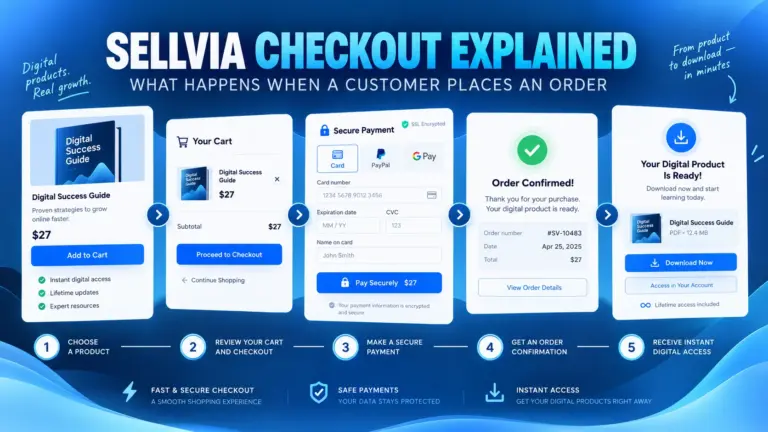
When a new order appears in Sellvia with a Process order action, the customer has already completed checkout, but the store-side workflow is not finished. The order still needs to be reviewed, funded, and confirmed before its profit can move out of Pending.
That distinction matters because the customer’s payment and the store owner’s processing payment are separate cash flows. Sellvia’s current documentation says an order can be processed manually with a card or automatically through a sufficiently funded Order Processing Credits balance. The dashboard may also apply several different fees depending on the method and timing, so clicking the button without checking the numbers first is not a good operating habit.
In this guide, I follow the practical sequence visible in the live account: identify the order, expand its details, verify the total and displayed profit, choose a funding method, wait for confirmation, and check the completed status. The screenshots also provide a real Processing Credits transfer record rather than relying only on generic documentation.

A New Order Is Not Yet a Finished Order
A new order moves through several distinct events:
- The customer completes checkout and pays the retail price.
- The order appears in the Sellvia dashboard and remains in Pending until processing is completed.
- The store owner reviews the order and its total processing cost.
- The order is funded manually with a card or automatically with Order Processing Credits.
- The status changes after successful processing.
- The associated profit enters the Incoming stage and, under current documentation, remains there for approximately 72 calendar hours.
- After that hold, 75% moves to Available and 25% moves to Risk Reserve for the documented reserve period.
These stages remain separate even when one of them is automated. With sufficient Processing Credits, Sellvia can complete the processing step without a manual click, but the customer payment, processing cost, fee calculation, and balance movement are still different events.
For a broader map of the interface, see the Sellvia Dashboard Overview. This article stays focused on the decision and payment that turn a new order into a processed one.
Before You Pay: The One-Minute Check
Before paying, I recommend checking the following fields and conditions. This takes less than a minute and can prevent duplicate attempts, misunderstood costs, and avoidable payment failures.
- Order ID — record it before contacting support or retrying a payment.
- Date and time — confirm how close the order is to the three-day fee threshold and seven-day cancellation deadline.
- Order source, when displayed — useful for connecting orders to a traffic source.
- Customer total — the retail amount recorded for the purchase.
- Total processing cost — the amount required to complete the order.
- Expected profit — the difference displayed or calculated before later balance-stage timing.
- Current status — verify that the order still requires action.
- Payment source — card for manual processing or Processing Credits for automation.
- Available funds — the selected card or credits balance must cover the required amount.
- Warnings and fee lines — read the live confirmation screen before approving the charge.

Processing the Order Without Guesswork
- Log in. Go to the Sellvia account login page and enter the email associated with your subscription. Sellvia typically sends a one-time login link — check your inbox, and your spam folder if it doesn’t arrive within a couple of minutes.
- Open the Orders section from the dashboard navigation.
- Identify which orders need action. Orders awaiting your input are typically marked with a status such as Process order.
- Open or review the order line to see the total, cost, expected profit, and payment method.
- Click Process order.
- Review the amount shown before you confirm. This is your last chance to catch a mismatch between what you expected and what’s actually being charged.
- Confirm or choose your payment method. Make sure the intended card or credits option is selected.
- Complete the payment. Click through once, and then wait.
- Wait for the page to confirm the result. This step gets skipped most often, leading to repeated clicks — one of the more common causes of confused support tickets about accidental double charges.
- Check the updated order status. The button should change or disappear, and the order should reflect a new state.
- If the status doesn’t update, don’t immediately retry. Take a screenshot, note the time, and check the troubleshooting section before attempting again.
The steps above follow Sellvia’s current manual order-processing guidance and Orders section documentation.
A Simple Order Example—and What the Profit Number Does Not Mean
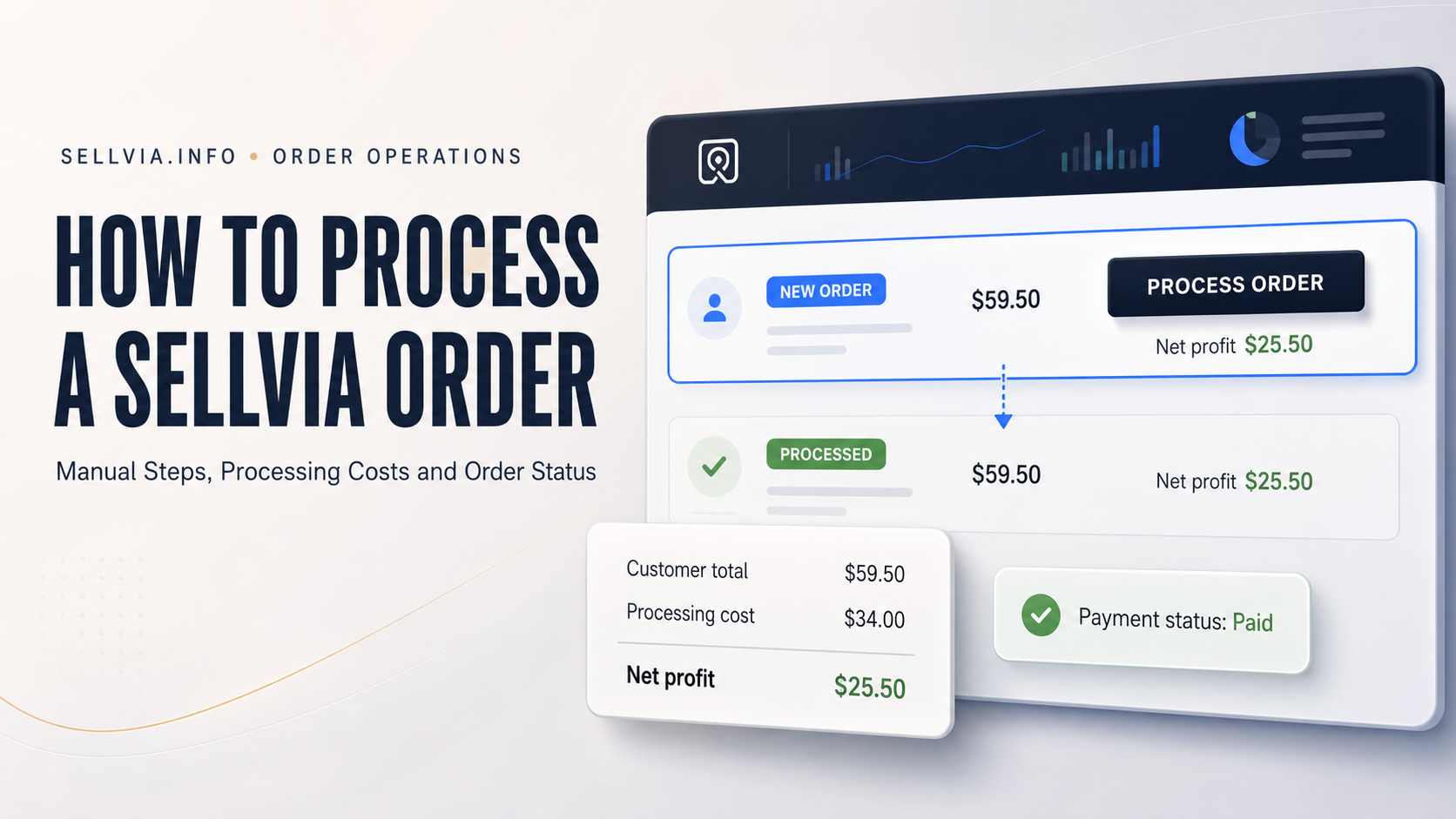
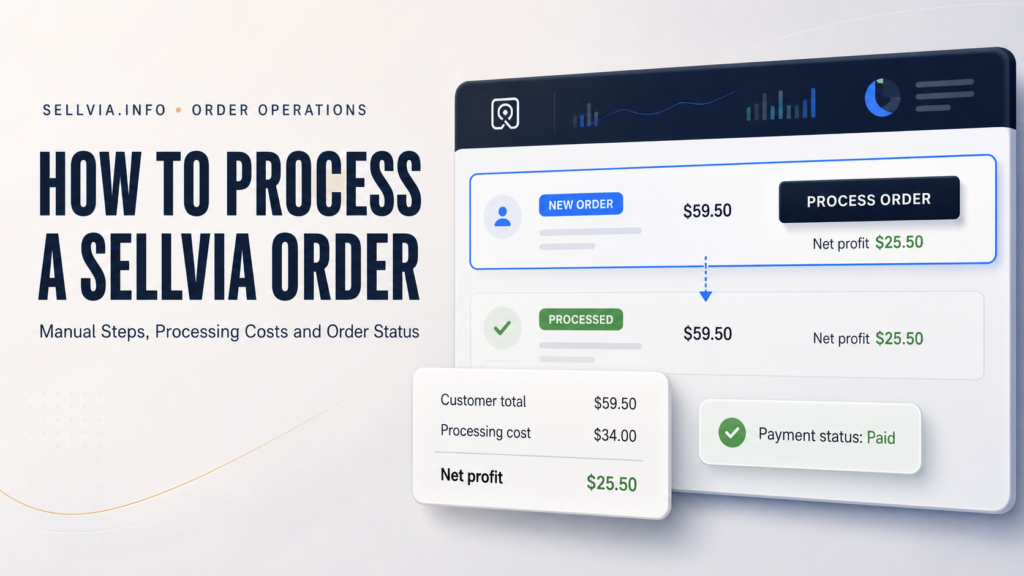
The expanded live order shown above provides a concrete account example. The dashboard records a customer total of $59.50 and displays $25.50 as net profit before processing.
Because the screenshot does not expose a separate processing-cost line, the order cost below is an editorial calculation, not a copied dashboard field:
| Verified or calculated field | Value |
|---|---|
| Customer total displayed | $59.50 |
| Net profit displayed | $25.50 |
| Implied order cost, calculated | $34.00 |
| Payment status before processing | Paid |
| Order source displayed | Sellvia Ads → Your store |
The $25.50 figure is not immediately withdrawable cash. After processing, the profit moves into Sellvia’s balance workflow. It may also be affected by any fee lines shown on the live confirmation screen, so the final amount presented immediately before payment remains the controlling figure for that order.
Manual or Automatic? Compare the Whole Cost, Not Just the Click
Both methods can work, but they have different cost structures. The most important distinction is not simply “manual versus automatic”; it is which fees apply and how much working capital must be prepared before orders arrive.
| Decision factor | Manual card processing | Order Processing Credits |
|---|---|---|
| Funding method | A card is charged for each order | A separate pre-funded credits balance |
| Per-order action | Review and confirm each order | Automatic while the balance covers the full cost |
| 28% credits funding fee | Not applicable | Applies when credits are topped up or funded from Available balance |
| Auto-Processing Fee | Not applicable | Current fee documentation lists 15%–23% |
| Base Processing Fee | May apply to the order | May apply to the order |
| Late Processing Charge | Possible after three days if the order remains unconfirmed | Possible when an order remains delayed rather than processing automatically |
| Operational control | Highest visibility, order by order | Lower manual workload, but the balance must stay funded |
| Best suited to | Occasional orders and close cost control | Steady volume where automation offsets the extra cost |
Manual processing avoids the separate 28% credits-funding fee and the documented Auto-Processing Fee, but it is not necessarily free of all order-level charges. Sellvia’s current fee page lists a Processing Fee of 9.99%–18% that can apply when the platform fulfills a product. Always compare the complete amount shown on the order screen.
Automatic processing reduces the risk of overlooking an order, but it can be materially more expensive. The right method depends on order volume, the value of your time, and whether the expected margin still works after every displayed fee.
When Automation Changes the Math
Sellvia’s current documentation separates two costs that are easy to confuse:
- Processing Credits funding fee: 28% when funds are added or transferred to the Processing Credits balance.
- Auto-Processing Fee: currently documented as 15%–23% when an order is processed through those credits.
The supplied live account screen provides direct evidence of the first charge. In Payouts History, a completed transfer dated April 8, 2026 shows:
| Recorded field | Value |
|---|---|
| Amount transferred | $503.22 |
| Recorded fee | $140.90 |
| Status | Sent |
| Destination | Processing Credits |

This confirms that the recorded transfer fee equals approximately 28% of the transferred amount. It does not mean Sellvia removes 28% of the customer’s entire retail payment. The charge applies to funding the separate Processing Credits balance.
The screenshot also does not prove the exact Auto-Processing Fee applied to an individual order. That fee must be checked on the specific order or receipt. Sellvia’s current published fee range is 15%–23%, and the live confirmation screen should be treated as controlling if it differs.
For a complete fee overview beyond this workflow, see Sellvia Pricing Explained and Sellvia’s official Dashboard Fees page.
How Much Processing Capital Should Be Ready?
Illustrative example:
- Average processing cost per order: $12
- Expected orders during the next 72 hours: 8
- Base processing requirement: $12 × 8 = $96
- 20% safety margin: $19.20
- Suggested illustrative buffer: $115.20
This is an editorial planning method, not an official Sellvia minimum or personalized financial advice. Adjust it to match your own average order cost and expected volume.
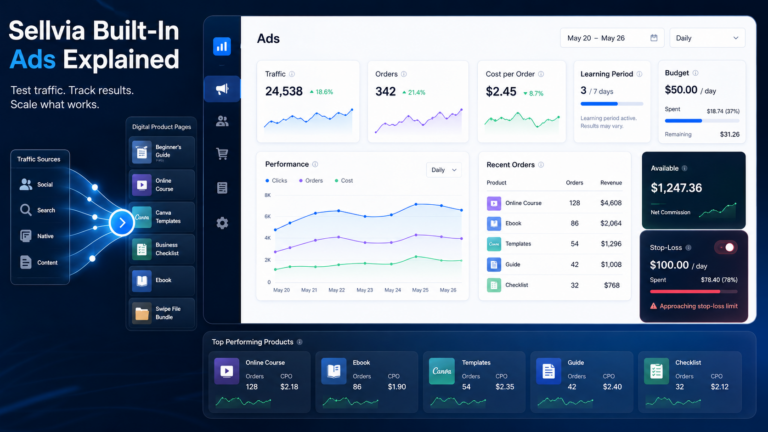
One thing worth flagging: this buffer should scale up whenever you increase your advertising budget. A bigger daily ad spend, if it’s working, tends to produce more orders in a shorter window, and a processing buffer sized for your old order volume can run out faster than expected during a successful campaign.
For a wider plan that includes subscription, advertising, reserves, and payout timing, use the Sellvia Startup Budget guide.
Do Not Leave the Page Until the Result Is Clear
After clicking through a payment, actively confirm the result rather than assuming it went through. Signs of success typically include:
- The Process order button changes or disappears from that order line.
- The order shows an updated status reflecting that processing is complete.
- The processing payment appears in your card or Processing Credits activity, where visible.
- Expected profit from that order enters your account’s balance workflow.
- No further action remains attached to that specific order.

If any of these don’t line up, move to the troubleshooting section rather than reprocessing the same order a second time.
What Happens to the Profit After Processing
Successful processing starts the next financial stage; it does not make the profit instantly withdrawable. Current Sellvia documentation describes this sequence:
- Pending: the order has been placed but is not yet processed.
- Incoming: after processing, the funds enter a mandatory 72-hour hold calculated in calendar days.
- Available: after the hold, 75% moves to the balance that can be used or withdrawn, subject to the current payout requirements.
- Risk Reserve: the remaining 25% is held for the documented 125-day reserve period before moving to Available.
This is why “expected profit” on an order is not the same as cash ready for a bank transfer. For the complete explanation, see Sellvia Balance Explained and the official Balance and Payouts documentation.
Three Days and Seven Days Are Different Deadlines
There are two different time thresholds to manage:
| Timing | What it means | Practical action |
|---|---|---|
| Day 0 | The order appears and requires processing unless automation covers it. | Review the order and confirm the funding method. |
| Before three days | The documented late-processing threshold has not been crossed. | Process during this window whenever possible. |
| After three days | Sellvia’s fee page lists a possible Late Processing Charge of 9%–18% when confirmation is delayed. | Check the live fee lines and process immediately rather than waiting. |
| Before the seven-day cancellation | Current Orders documentation describes one automatic attempt to use sufficient Available balance. | Treat this as an emergency exception, not a normal funding method. |
| After seven days | An unprocessed order is canceled and the customer is refunded. | Avoid reaching this point. |
Waiting until the final day is poor operational practice. A declined card, insufficient credits, or a delayed support response can turn an otherwise valid order into a cancellation. During active advertising, checking Orders daily is the safer routine.
When an Order Will Not Process: A Decision Table
| Problem | Likely cause | What to check | Safe next action | Contact support when |
|---|---|---|---|---|
| Process order button missing | Already processed or awaiting a different status | Refresh; check current status label | Confirm it isn’t already processed | No status/button after refresh |
| Payment declined | Expired/insufficient card, bank block | Expiration date, limit, fraud alerts | Update card or try alternative method | Repeated declines with no clear reason |
| Saved card doesn’t work | Outdated card details | Re-enter details | Update payment info before retrying | Update itself fails to save |
| No login email | Delivery delay, spam filter | Spam folder, correct email used | Wait, then request another link | No email after two attempts |
| Expected auto-processing didn’t happen | Credits balance below order cost | Credits balance vs. order cost | Top up credits or process manually | Balance looks sufficient but order still pending |
| Subscription inactive | Billing issue, unconverted trial | Account/subscription status | Update billing details | Active status shown but still blocked |
| Payment done, status unchanged | Display delay or incomplete transaction | Confirmation, status after a few minutes | Wait briefly, refresh; avoid reprocessing | Still unchanged after a reasonable wait |
| Fear of a duplicate charge | Multiple clicks during a slow load | Transaction history for duplicates | Do not reprocess; check history first | Promptly, with timestamps, if duplicate found |
| Order nearing the 7-day limit | Delayed review or funding issue | Days remaining, funding availability | Process immediately with whichever method is ready | Unable to process despite trying |
| Order is older than three days | Processing was delayed | Any Late Processing Charge shown before confirmation | Review the final total and process promptly | The fee or order state is unclear |
Evidence to have ready when contacting Sellvia Support: order ID, timestamp, a screenshot of the current status, payment amount, payment confirmation, last four digits of the card only, the exact error message, browser and device, and any actions already attempted. Never send full card numbers, passwords, one-time login links, identity documents, or a customer’s personal information in a support request.
A Daily Routine That Keeps Orders From Aging
- Check the order badge or Orders section first thing.
- Review any new orders since the last check.
- Process urgent manual orders first.
- Confirm the current Processing Credits balance.
- Compare that balance against the largest expected order cost.
- Verify that recently processed orders show the correct updated status.
- Record processing expenses against revenue.
- Review any unresolved orders before closing the session.
What Changes When Orders Start Arriving Together
- One occasional order: Manual processing offers direct control and avoids the separate 28% credits top-up fee, although order-level processing fees may still apply.
- Several orders per day: Still workable manually, but this is often the point where Processing Credits start to earn their fee.
- Clustered orders during an ad campaign: A thin Processing Credits balance or an under-limit card becomes a real risk here.
- Insufficient processing capital: The most likely scenario to produce missed or canceled orders during a good sales period.
- Transitioning to automation: Reduces manual workload at the cost of the top-up fee.
- Maintaining a safety reserve: Tie buffer sizing to your actual order volume, not a one-time guess.
- Matching ad spend to processing capacity: An ad budget increase that outpaces your processing buffer creates exactly the liquidity squeeze this guide is meant to help you avoid.
The Workflow Is Straightforward Once the Fees Are Separated
Once you separate the pieces — the customer’s payment, the processing cost, the payment method funding that cost, the expected profit, and the balance stages that follow — the Sellvia order workflow turns out to be fairly straightforward. The Orders dashboard gives the process a visible structure instead of leaving it to guesswork. Manual processing is accessible even for someone opening the dashboard for the first time. Order Processing Credits offer a genuinely convenient automation option once order volume justifies the fee.
The part that actually determines whether this goes smoothly isn’t cleverness — it’s consistency. Keep enough processing capital on hand for your current order volume, check the account regularly, and treat the seven-day window as a planning deadline, not a grace period. None of this guarantees sales or profit. What it does is remove the operational surprises that turn a working store into an avoidably stressful one.
Frequently Asked Questions
How do I process an order on Sellvia?
Log into your dashboard, open the Orders section, and find any order marked Process order. Review the total, cost, and expected profit, then confirm payment through a saved card or, if your balance covers it, through Order Processing Credits. Check the resulting status afterward to confirm the action completed.
Why do I have to pay to process a Sellvia order?
The customer’s retail payment and the amount required to complete the order are separate cash flows. Until processing occurs, earnings remain in Pending. The order is normally funded with a card or with Order Processing Credits, and the live confirmation screen may include processing-related fees.
Can I use my Sellvia balance to process an order?
Not as the normal direct manual payment method. Current documentation says orders are paid with a card or Order Processing Credits. Available balance can be transferred to Processing Credits, subject to the documented 28% fee. Separately, the Orders documentation describes one automatic Available-balance attempt immediately before a seven-day cancellation; that limited exception should not be treated as the normal workflow.
What happens if I do not process a Sellvia order?
Sellvia’s current fee documentation lists a possible Late Processing Charge of 9%–18% when processing is delayed beyond three days. If the order remains unprocessed for seven days, current order documentation says it is automatically canceled and the customer is refunded.
How long do I have to process an order?
The final cancellation window is seven days, but three days is the more useful operating deadline because Sellvia currently lists a possible Late Processing Charge after that point. Processing within the first three days leaves more time to resolve a declined card, insufficient credits, or a dashboard issue.
Why did Sellvia not process my order automatically?
The most common reason is that the Order Processing Credits balance did not fully cover the order cost. Current documentation also lists an inactive subscription or automation paused after inactivity as possible causes. Top up the balance, process manually, or contact support if the balance appears sufficient.
Are Order Processing Credits required?
No. They are optional. Manual processing with a card remains available and avoids the separate 28% credits-funding fee and the documented Auto-Processing Fee. Other order-level processing charges may still apply, so manual processing should not be described as completely fee-free.
Is manual or automatic Sellvia order processing better?
Manual processing is usually easier to audit and avoids the Processing Credits funding and Auto-Processing fees. Automatic processing reduces the risk of missing orders when volume rises. The better option is the one that still produces an acceptable margin after all fees shown on the live order screen and the value of the time saved are included.
Official Sources Checked
- How to Process Orders in Sellvia
- Sellvia Dashboard: Orders Section
- How Order Processing Credits Work
- Sellvia Dashboard: Fees
- Sellvia Dashboard: Balance and Payouts
Checked July 28, 2026. Fees, thresholds, and dashboard labels can change; confirm the final amount in the live account before approving any transaction.

Joe Radmon is a digital commerce researcher and contributing author at Sellvia.info. His work focuses on the practical mechanics behind Sellvia, from subscription costs and advertising budgets to order processing, account balances, and payout planning. Joe is particularly interested in how platform features affect everyday business decisions. His articles aim to replace vague expectations with clear explanations, realistic examples, and useful context for readers evaluating Sellvia as an online business platform.




The part about cash flow timing actually matches what I tracked – my first withdrawal from this platform cleared in a specific window that I had mentally budgeted wrong by about four days, well, not exactly wrong but I hadn’t accounted for the pending-to-confirmed gap. 16 weeks in and I still check the payment confirmation screen before I mentally count anything as profit, because the customer paying and me actually having access to that margin are two genuinely different moments. Compared to what I was doing before with three separate tools trying to approximate this same visibility, having the processing cost and expected net in one screen before I confirm is the part that stopped the anxiety loop.
I thought the pending-to-confirmed gap on Sellvia was just a learning curve thing – it wasn’t, it’s just the part nobody talks about until you’ve already miscalculated a withdrawal by about $40.
When a colleague asked why I stopped complaining about order tasks, the honest answer was that the three-day processing deadline actually pushed me to stay on top of cash flow in a way I never did before. Told myself not to get excited until the $25.50 net profit moved out of Pending – well, not exactly excitement, but that moment clarified how this platform actually works as a real operation, not a hobby.
the processing buffer formula is genuinely useful, did the math for my own order volume and realized I’d been running way too thin on my credits balance during my last ad push
good reminder that available balance can’t just be used directly to pay for processing, tripped me up early on since it felt like it should obviously work that way
The three-day deadline for processing is the detail I wish I had flagged earlier – my Growth Manager pointed out that letting orders sit past that window was quietly eating into what I thought was clean profit. Tbh the $25.50 net on a $59.50 order looks fine until a late fee clips it. Check your Processing Credits balance before you need it, not after.
The three-day deadline warning is the part I needed to see written out clearly – I was in the “grow” phase and nearly missed confirming an order because I assumed it would just wait. Ngl, seeing the $25.50 net profit sitting in Pending was enough motivation to stop second-guessing the process and just confirm it.