
Sellvia Product Catalog Explained: How Digital Product Access Works
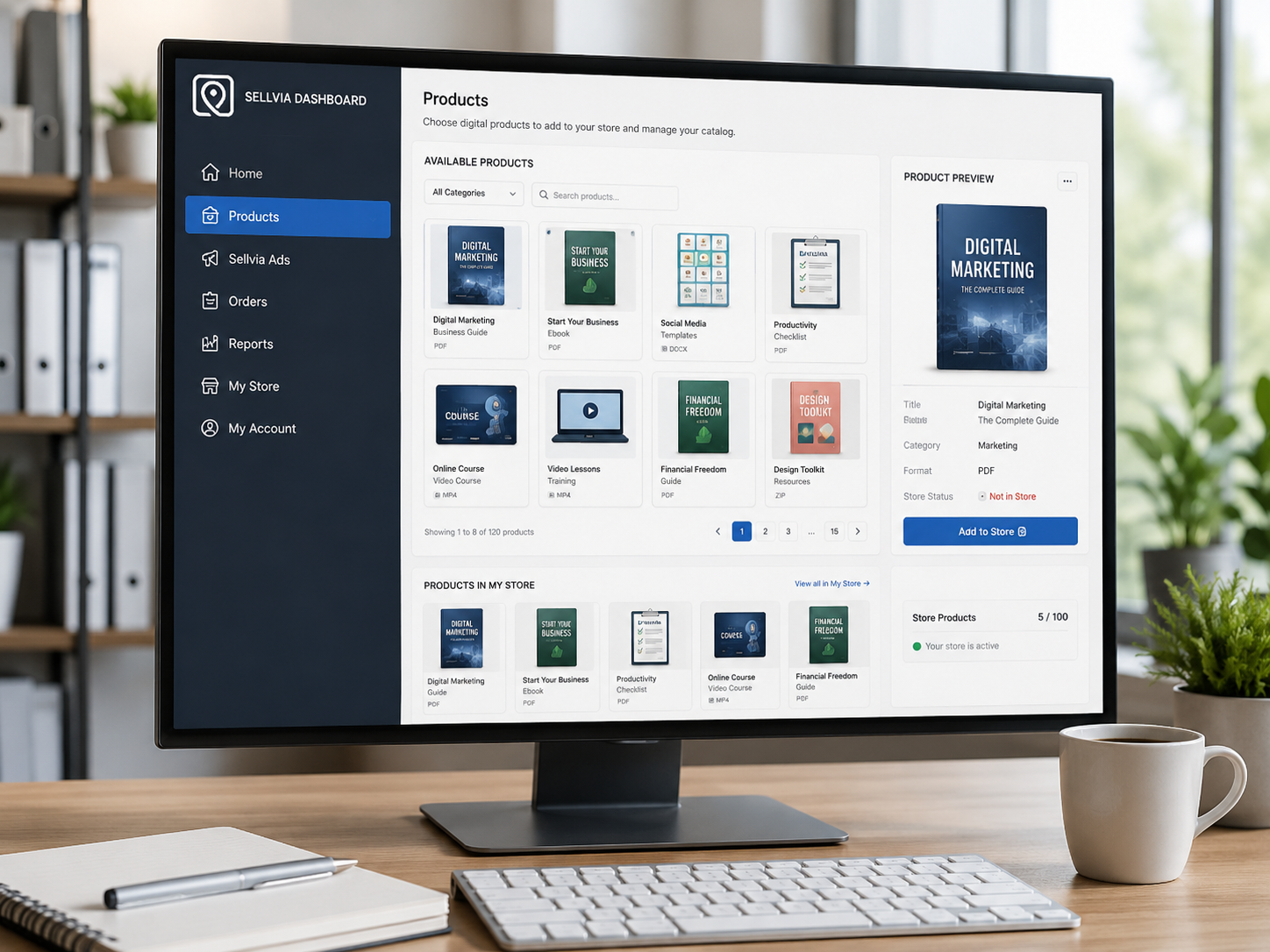
The Sellvia product catalog is the product library connected to a Sellvia store. It is where store owners can review digital products available through the platform and decide which ones belong in their customer-facing catalog. Understanding that distinction matters: the Sellvia catalog is the source library, while your store is the selection customers actually browse and buy from.
Quick Answer
Sellvia currently centers its store model on ready-made digital products such as guides, courses, checklists, downloadable resources, and AI-oriented toolkits. New stores can arrive with products already loaded, while the wider catalog provides additional items that can be added later. The important operating idea is simple: catalog access gives you products to choose from; it does not mean every available product should automatically appear in your store.
A good workflow is to review the products already visible in your store, understand their categories and customer use cases, then expand the selection deliberately rather than importing unrelated items just to increase the product count.
What the Sellvia Product Catalog Is
The product catalog is one component of the wider Sellvia dashboard. Sellvia’s current public material describes the platform as providing ready-made digital products that can be sold through a connected store. Recent Sellvia Academy guidance says stores launch with a pre-loaded selection and that owners can later expand beyond that starting set using the broader catalog.
That makes the catalog different from the storefront. The catalog is where products are available for selection. The storefront is where the products you have chosen are presented to customers. If you are still learning how the store itself fits together, see our Sellvia My Store Explained guide.
The catalog also fits into a larger operating sequence: choose products, make them available in the store, bring visitors to those product pages, receive orders, process those orders where required, and monitor results through Reports. Our Sellvia Dashboard Overview shows how Products relates to the other dashboard sections.
What Kind of Products Are in the Current Sellvia Model?
Current Sellvia materials emphasize digital products. Examples include guides, ebooks, courses, checklists, downloadable resources, templates, tools, and packaged AI toolkits. Sellvia’s current Terms of Use specifically identifies digital materials such as guides, ebooks, online courses, and other educational or informational products, and states that the digital products presented in its catalog are created by the Sellvia team or covered by its rights and licenses.
This is important because it changes how you should think about catalog management. A digital catalog does not need stock-level planning in the way a physical inventory system does. The main questions are instead about relevance, positioning, presentation, pricing, and whether a product belongs in the store’s overall theme.
Catalog Access vs. Products Already in Your Store
One of the easiest beginner mistakes is to treat “available in the catalog” and “currently in my store” as the same thing. They are not.
| Area | Purpose |
|---|---|
| Sellvia catalog | The broader library of products available through the platform. |
| Your store | The customer-facing selection you have decided to offer. |
| Product page | The individual page where a customer evaluates a particular product. |
| Orders | The operational area used after a customer completes a purchase. |
This distinction is useful because a large source catalog can support many different store concepts. Your store does not have to mirror the entire catalog. In fact, Sellvia’s recent Academy guidance recommends thinking about catalog strategy rather than adding products simply because they are available.
Why a Focused Product Selection Usually Makes More Sense
A store becomes easier to understand when its products feel related. Imagine a customer arriving on a homepage and seeing a productivity toolkit, a meal-planning guide, a pet resource, a career template, and a completely unrelated seasonal printable all competing for attention. Every product may be legitimate on its own, but the store can still feel random.
A more deliberate catalog answers three questions:
- Who is this store for?
- What kind of problem does it help solve?
- Why do these products belong together?
Sellvia Academy’s current guidance makes a similar point when discussing catalog expansion: do not rush to add everything that looks attractive. The starting products are a base, and later additions should support a coherent strategy.
How to Evaluate a Product Before Adding It
Before adding a catalog item to the storefront, review it as if you were the customer rather than the store administrator.
1. Check the product’s actual deliverable
Understand whether the customer receives a guide, course, checklist, toolkit, template, or another type of digital resource. The product title alone may not tell you enough about the buyer experience.
2. Check audience fit
Ask whether the same person who would buy your existing products could reasonably be interested in this one. Perfect overlap is unnecessary, but there should be a recognizable connection.
3. Read the product page
Review the description, imagery, price, and customer-facing promise. The product page is the point where catalog data becomes a buying decision, so do not evaluate a product only from a small catalog card.
4. Check for unnecessary overlap
Two products can address the same audience without being duplicates. But if several listings solve essentially the same problem in nearly the same way, adding all of them can make the choice harder rather than better.
5. Think about navigation
Know which store category should contain the product before you add it. If you cannot decide where it belongs, that may be a sign it does not fit the current store structure.
How Product Access Connects to Your Subscription
Catalog access is part of the Sellvia platform relationship rather than ownership of the entire platform library. Sellvia’s current terms state that the digital products in the Sellvia catalog are created by the Sellvia team and that Sellvia possesses the relevant rights or licenses to those materials. In practical terms, store owners should treat the catalog as platform-provided content available within the Sellvia service and follow the current account terms governing its use.
This is different from creating an original ebook or course yourself and owning that independent asset. If long-term rights to a specific item matter to your business, check the current Sellvia Terms of Use and the rules shown in your account rather than assuming catalog access transfers ownership of the underlying material.
Pre-Loaded Products: What to Do First
Recent Sellvia launch guidance says new stores can arrive with a starting set of products already loaded. The exact number promoted by Sellvia has varied across current pages and offers, so it is better to rely on the live account rather than an old fixed number.
When you first open the store, do not immediately delete or replace everything. Start with an audit:
- Open the storefront as a customer.
- Review the categories already visible.
- Open several product pages.
- Check what each product contains.
- Look for obvious theme conflicts or duplicates.
- Check the default prices shown to customers.
- Write down gaps before searching the wider catalog.
This creates a reason for every later addition. Instead of browsing the catalog and asking “What looks interesting?”, you can ask “What is missing from this store?”
Browsing the Catalog Efficiently
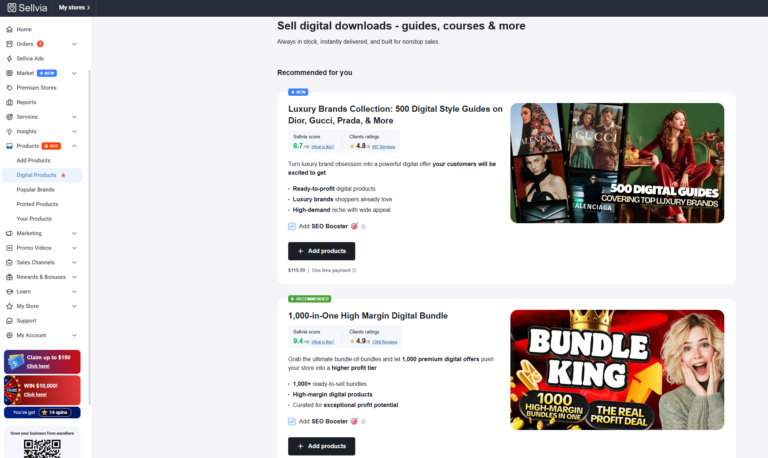
The exact catalog interface can change as Sellvia updates the dashboard, so the live account should always be your final reference. In general, use the available search, categories, filters, and sorting controls to narrow the library rather than scrolling without a plan.
A practical sequence is:
- Choose the customer need or store category you want to strengthen.
- Search that topic in the catalog.
- Shortlist a small number of relevant products.
- Compare their deliverables and product pages.
- Select the strongest fit.
- Add it to the appropriate store category.
- Review the live storefront after the addition.
Our next dedicated guide, How to Add Digital Products to Your Sellvia Store, will cover the actual addition workflow separately. Keeping these two topics separate is intentional: this guide explains how catalog access works and how to choose; the next guide explains how to perform the addition.
Catalog Size Is Not the Same as Store Quality
Product count is easy to measure, which makes it tempting to treat it as a goal. But a larger store is not automatically a clearer or more useful store.
For informational purposes, think of product count as capacity rather than quality. The useful question is not “How many products can I add?” It is “How many products can I organize and present coherently for this audience?”
Sellvia’s own current public pages use different product-count figures depending on the offer and page, reinforcing why users should verify the live account rather than building a strategy around a promotional number. The stable principle is that the platform supplies a substantial digital catalog and allows the store selection to expand beyond its initial setup.
What Happens After You Add a Product?
Once a product is part of the store, catalog management becomes storefront management. You should verify how the listing appears publicly, where it sits in navigation, whether the product page is understandable, and whether the price is displayed correctly.
After customers begin visiting the store, the next useful data comes from Reports rather than the catalog itself. Our Sellvia Reports Explained guide covers traffic, orders, conversion rate, average order value, and revenue reporting. Catalog decisions and Reports therefore serve different purposes: the catalog controls what can be offered, while Reports helps you observe what visitors actually do.
What Happens When a Catalog Product Sells?
A customer sees the product in your store, opens its product page, and completes the purchase through the store checkout. The resulting transaction then becomes part of the order workflow.
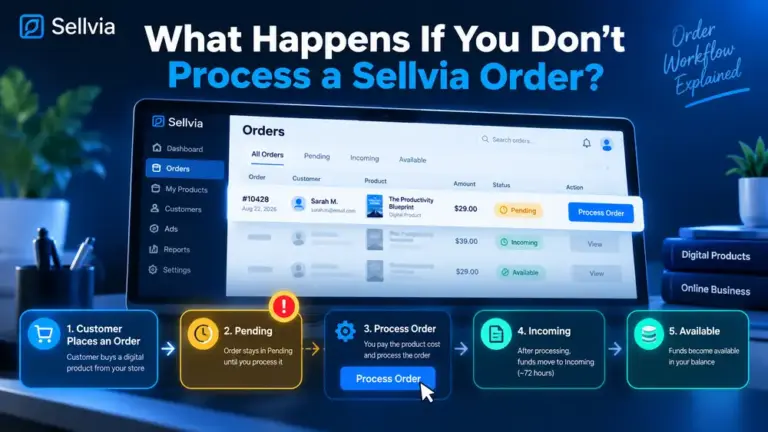
Do not use the catalog screen as an order-management screen. Once the purchase exists, move to Orders and follow the current workflow shown by the account. Our How to Process a Sellvia Order guide explains the operational steps after a purchase is recorded.
Common Sellvia Product Catalog Mistakes
Adding products only to make the store look bigger
More listings can create more browsing choices, but unrelated choices can also weaken the store’s identity. Add products because they fill a useful gap.
Assuming every catalog item is already visible to customers
The broader catalog and the customer-facing store serve different functions. Verify the live storefront to know what customers can actually see.
Ignoring the product page
A catalog thumbnail is not enough. Review the full customer-facing page before deciding whether a product belongs in your store.
Using outdated product-count claims as account limits
Sellvia’s offers and plan details can change. Check the live dashboard and current terms for account-specific limits rather than relying on an old article or promotional page.
Confusing catalog access with ownership
Sellvia’s terms describe the catalog materials as Sellvia-created or Sellvia-licensed digital products. Follow the current terms governing use rather than assuming the underlying files become independently owned assets.
Product Catalog Checklist
- Review the products already in your store first.
- Define the audience or theme you want the catalog to support.
- Search the wider catalog for specific gaps.
- Read the full product details before adding an item.
- Check that the product fits an existing store category or justifies a new one.
- Avoid adding near-duplicates without a clear reason.
- Review the customer-facing page after adding the product.
- Use Reports later to evaluate store activity rather than judging performance from the catalog screen.
Sellvia Product Catalog FAQ
What is the Sellvia product catalog?
It is the platform’s library of products available for use with a Sellvia store. Current Sellvia materials emphasize ready-made digital products including guides, courses, checklists, downloadable resources, and toolkits.
Are all Sellvia catalog products automatically in my store?
No. A store can start with products already loaded, while the broader catalog provides additional products that can be selected later. Check the live storefront to see what customers currently see.
Do I need to create the digital products myself?
Not for Sellvia’s platform catalog. Current Sellvia documentation states that the catalog’s digital products are created by the Sellvia team and covered by Sellvia’s rights or licenses.
Should I add as many products as possible?
Not necessarily. A coherent product selection is usually easier for customers to understand. Add products that fit the store’s audience and fill a real catalog gap.
Where do I manage a sale after someone buys a catalog product?
Use the Orders section of the Sellvia dashboard. Product selection and order management are separate stages of the workflow.
Where can I see whether products are attracting orders?
Use Sellvia Reports for store-level activity such as visitors, orders, conversion rate, average order value, and revenue. The catalog itself is primarily a product-selection tool.
Final Takeaway
The Sellvia product catalog is best treated as a source library, not as a checklist of items that all need to be placed in your store. Your storefront should be the curated result: a product selection that makes sense to a particular customer and remains easy to browse.
Start with the products already present, understand what each one delivers, identify gaps, then use the wider catalog to strengthen the store deliberately. After adding products, verify the public product pages and use Orders and Reports for the later stages of the workflow.
Source note: Platform details in this guide were checked against current Sellvia public pages, Sellvia Academy guidance, Sellvia Community documentation, and Sellvia Terms of Use on September 19, 2026. Sellvia changes offers and dashboard controls over time, so the live account and current terms remain the final reference for account-specific features and limits.

Jeck Palmer is an ecommerce writer and platform researcher at Sellvia.info. He specializes in analyzing Sellvia’s features, pricing, tools, advertising system, order workflow, and overall business model. His articles are designed to explain complex platform processes in clear and practical language, helping beginners understand potential costs, evaluate available tools, and make more informed decisions before starting an online business.

One Comment