What Happens If You Don’t Process a Sellvia Order?
An order appearing in Sellvia does not automatically mean the seller-side workflow is finished. With manual order processing, there is a specific approval step between a customer placing an order and that order moving through Sellvia’s processing and commission states.
I checked Sellvia’s current Terms of Use and its current digital-product guidance before putting this walkthrough together because the order flow has changed from older versions of the platform. The useful way to think about it now is simple: an unprocessed order is still waiting for the action that releases it into the next stage.
Quick Answer
If you do not process a Sellvia order that requires manual approval, the order does not progress through the normal processing workflow. Under Sellvia’s current terms, commission connected to an unprocessed order remains Pending. Once the order is processed, the associated commission moves to Incoming for verification, which can last up to 72 hours, and only after that can qualifying commission become Available. Sellvia also states that an order is not released for fulfillment unless it has been approved and the required amount has been paid.
The Short Version: Nothing Is “Lost,” but the Workflow Stops
The first thing I would not do is panic when an order is sitting unprocessed. Pending is a workflow state, not automatically an error. The important distinction is whether the order is legitimately waiting for you to approve it or whether your account is supposed to be processing orders automatically.
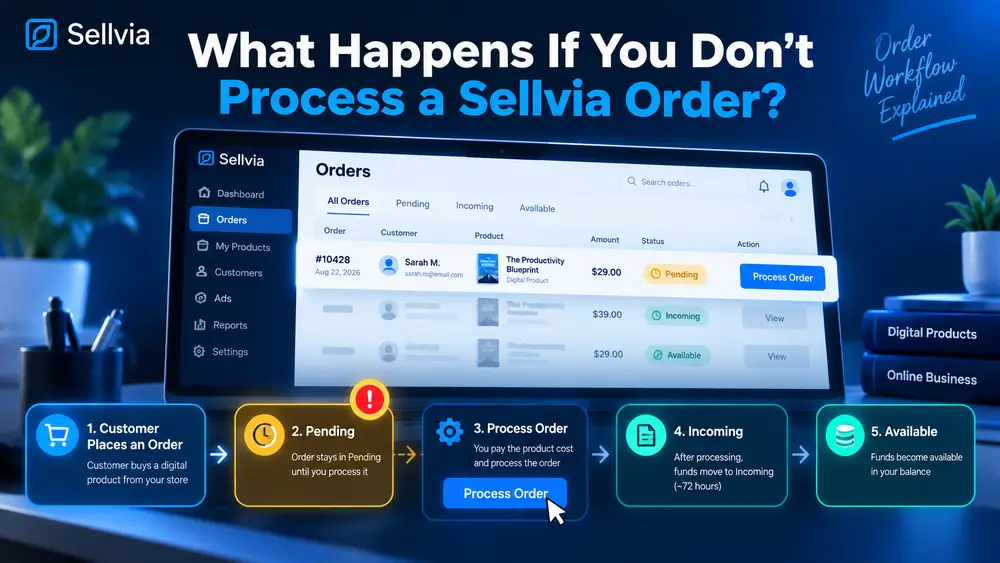
For a manually processed order, the practical sequence is:
- A customer completes checkout.
- The order appears in the Sellvia account.
- The order waits for processing or approval.
- The associated commission remains in the Pending state.
- You process the order through the control provided in your dashboard.
- The order can move forward in the platform workflow.
- The associated commission moves from Pending to Incoming.
- Sellvia verifies the activity during the Incoming period, which the current terms say may last up to 72 hours.
- After the verification period, qualifying commission can move to Available.
That makes an unprocessed order easy to understand: it is a transaction that has entered the system but has not yet crossed the seller-side processing checkpoint.
If you have not already read the dedicated dashboard guide, start with Sellvia Orders Dashboard Explained. That article covers where orders sit in the account and how I separate the order workflow from the commission workflow.
What Sellvia Means by “Processing” an Order
Sellvia’s current Terms of Use define order processing as the point where an order is approved and released for fulfillment. The terms are unusually clear about the sequence: processing begins when the order is approved, and an order is not released for fulfillment unless it has been approved and the amounts payable in respect of it have been paid.
That matters because it explains why an unprocessed order is not simply a harmless notification sitting in an inbox. Processing is the action that tells the system the order can move to the next stage.
For the current digital-product model, Sellvia’s recent platform guidance describes a short seller-side confirmation step followed by automated delivery of the digital product or toolkit. In other words, the seller is not manually sending files one by one. The seller is confirming the transaction, and Sellvia then handles the delivery layer.
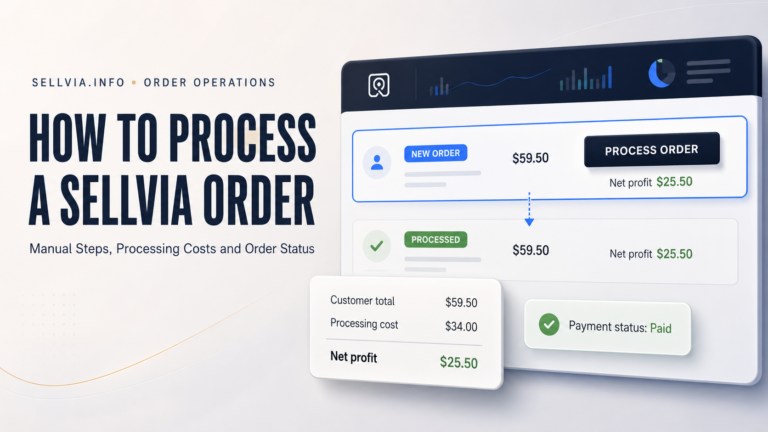
If you need the click-by-click procedure, use How to Process a Sellvia Order. This article focuses on what happens when that step is not completed.
1. The Order Remains Unprocessed
The most immediate consequence is also the simplest: the order remains in the part of the workflow that still requires action. It has not been approved into the next stage.
I would treat the Orders area as an action queue. A new order is something to inspect, not something to assume has completed every account-side step automatically. If the dashboard shows a processing control, that is the clearest signal that the system is still waiting for you.
This is one reason I prefer checking the current state before clicking anything. If an order already shows as processed, there is no reason to try to repeat the action. If it still shows as awaiting processing, that is where attention belongs.
2. The Associated Commission Stays Pending
This is the financial state most directly connected to an unprocessed order. Sellvia’s current terms define Pending Commission as commission associated with unprocessed orders.
That definition removes a lot of ambiguity. Pending is not the same thing as Incoming, and it is not the same thing as Available.
| Commission state | What it means | What moves it forward |
|---|---|---|
| Pending | Associated with an unprocessed order | Processing the order |
| Incoming | Processed order is being verified | Completion of the verification period and applicable checks |
| Available | Commission has cleared the Incoming stage | It can then be treated as available under the account rules |
This is also why I do not judge an order by looking only at the Balance area. The order and the commission describe two related but separate parts of the same chain. For a detailed explanation of the balance states, see Sellvia Balance Explained.
3. It Does Not Enter the Incoming Verification Stage
Processing is the trigger that changes the associated commission from Pending to Incoming. If the required processing action has not happened, the commission has not reached that verification stage yet.
Sellvia’s current terms state that Incoming Commission can remain in that state for up to 72 hours while Sellvia verifies referred activity, confirms order completion, checks attribution, and detects or prevents abuse, fraud, or policy violations.
The key point is chronological: the 72-hour Incoming period is after processing, not a countdown that starts simply because the customer placed the order.
This distinction is useful when troubleshooting. If an order has been sitting untouched and the commission still says Pending, waiting another 72 hours will not by itself substitute for processing. The workflow still needs the seller-side action unless an automated processing option is active.
4. It Cannot Progress to Available Commission Yet
Available Commission sits further down the chain. The current terms describe it as the state reached after the Incoming period concludes and the relevant verification is complete.
So if an order is still unprocessed, it is two transitions away from Available:
Unprocessed order → Pending Commission → process the order → Incoming Commission → verification → Available Commission.
I find this sequence much easier to work with than thinking of the balance as one number. Each state answers a different operational question. Pending tells you the order has not been processed. Incoming tells you it has been processed but is still being verified. Available tells you that stage has completed.
5. Fulfillment Is Not Released Until the Order Is Approved
This is the customer-experience reason not to leave manual orders sitting indefinitely. Sellvia’s current terms say that an order is not released for fulfillment unless it has been approved and the required amount has been paid.
For a digital-product store, “fulfillment” is not a physical shipping process. The current Sellvia model is based on digital products such as guides, courses, templates, checklists, ebooks, AI toolkits, and similar downloadable or account-access products. Sellvia’s recent guidance describes delivery as automated once the order has passed the required processing step.
Practically, that means processing is not merely bookkeeping. It is part of the mechanism that allows the order to move toward delivery.
If you want the customer-facing side of the process, read Sellvia Checkout Explained. It covers what happens around checkout, confirmation, and digital access.
Does the Customer’s Payment Disappear If You Do Not Process the Order?
No useful explanation should imply that an unprocessed order simply “vanishes.” The customer transaction and the seller-side processing workflow are separate layers.
Sellvia’s current Terms of Use also make an important distinction about the platform’s internal commission and balance terminology: Sellvia says it does not hold, pool, route, or transfer customer funds on behalf of users, and the commission, credit, incentive, or balance terminology in the terms represents internal non-cash promotional or prepaid service units funded by Sellvia or prepaid services delivered by Sellvia.
For day-to-day store operation, you do not need to overcomplicate that legal language. The practical takeaway is to follow the dashboard state shown for the order and the commission state shown for the associated account balance. Do not assume Pending means the customer checkout failed, and do not assume a customer checkout means your seller-side order is fully processed.
How Long Can You Leave an Order Unprocessed?
I would not build a routine around leaving manual orders untouched. The platform’s workflow is designed around processing, and Sellvia’s current order-processing materials actively encourage users to clear Pending orders rather than let them accumulate.
The current Terms of Use define what happens to the commission state, but they do not give a universal “safe waiting period” that I would treat as permission to ignore orders for a particular number of hours or days. Dashboard versions and account configurations can also differ.
My practical rule is therefore simple: if the order is legitimate, requires manual processing, and the account shows the normal processing control, deal with it promptly instead of trying to discover the maximum possible delay.
A short delay while you verify the order is different from routinely leaving transactions unattended.
What I Check Before Processing a Pending Order
When an order is still waiting for action, I would not treat the button as the only thing that matters. I first check the transaction record so I know exactly what I am approving.
The fields visible can vary by dashboard version, but the useful checks are consistent:
- Confirm you are looking at the correct order ID.
- Check the product attached to the transaction.
- Review the customer information exposed by the current interface.
- Check the displayed amount and the current status.
- Look for warnings or disabled controls before trying to process.
- Confirm whether your account is using manual or automatic processing.
- After processing, wait for the interface to confirm the state changed.
The final verification step matters. I would not repeatedly press a processing button because the screen feels slow. Refresh or reopen the order and verify its state before taking another action.
What If the Order Is Pending but There Is No “Process Order” Button?
This is where old screenshots can be misleading. Sellvia’s current terms acknowledge that different dashboard versions can expose different features, subscriptions, offers, and interface elements. A control shown in one account or older tutorial may not appear in exactly the same place in another account.
If a supposedly actionable order has no expected processing control, I would check four things before assuming something is broken:
- Open the order itself rather than relying only on the list view.
- Confirm its current order state.
- Check whether automatic processing is enabled for the account.
- Check for any message, warning, or account-level requirement that explains why the action is unavailable.
If the state remains unclear, record the order ID and contact Sellvia support with the exact status and what you can see. An order ID is much more useful for troubleshooting than a generic message saying “my order is stuck.”
Manual Processing vs Automatic Processing
Not every account needs the owner to click through every new order forever. Sellvia currently promotes an automated order-processing option for accounts that use the relevant order-processing balance or paid automation arrangement.
The exact commercial terms shown in the account can change, so I would check the current dashboard offer before assuming an old price or setup still applies. But the operational distinction is straightforward:
| Manual processing | Automatic processing |
|---|---|
| Seller reviews the order and uses the processing control | Eligible new orders can be processed by the configured automation |
| Pending orders require active attention | Routine processing can happen without the manual click |
| Good for closely watching early transactions | Useful when the seller wants less repetitive order handling |
Automation changes who performs the processing step; it does not make the Orders dashboard irrelevant. I would still check the account for exceptions and verify that transactions are moving through the expected states.
If You Enable Automation Later, What Happens to Older Pending Orders?
This is an area where I would be careful with assumptions. Older Sellvia guidance specifically noted that orders already pending before an automated/deposit-based processing setup was activated could still require manual processing. The current account interface should therefore be treated as the source of truth for any order that predates an automation change.
My approach would be to review the existing Pending queue after enabling automation rather than assuming every historical transaction has been retroactively cleared.
For each older order, open it and check whether the processing action is still available. If it is, follow the current dashboard workflow rather than waiting for automation to pick it up later.
Why Pending Orders Are Easy to Misread
Most confusion comes from mixing three different concepts:
- Checkout status – what happened on the customer-facing purchase side.
- Order processing status – whether the seller-side order has been approved and released into the next stage.
- Commission status – whether the associated commission is Pending, Incoming, or Available.
These states are related, but they are not interchangeable. Seeing a successful customer purchase does not automatically mean the commission is Available. Seeing Pending Commission does not automatically mean the customer payment failed. Seeing Incoming does not mean the money is already in the final available state.
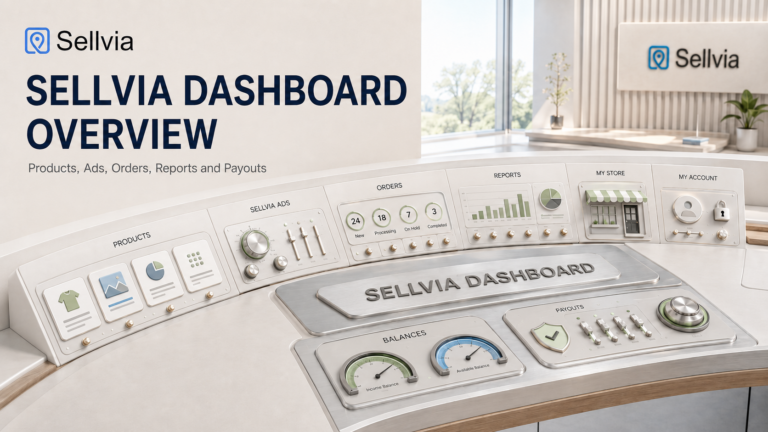
That layered structure is why the Sellvia Dashboard Overview is useful before troubleshooting individual transactions. Each section of the account answers a different question.
A Practical Example
Suppose a customer buys a $49 digital guide from your store.
The order appears in the Sellvia account and requires manual processing. You notice the transaction but decide to come back to it later.
At that point:
- The order exists in the account.
- It is still unprocessed.
- The associated commission is still Pending under Sellvia’s current definition.
- The order has not crossed the approval checkpoint that releases it into fulfillment.
- The Incoming verification period has not begun for that associated commission.
- The commission therefore cannot complete the path to Available yet.
Later, you open the order, verify the details, and process it. The associated commission can then move from Pending to Incoming. Sellvia performs the Incoming-stage verification, which can last up to 72 hours. After that period and the relevant checks, qualifying commission can move to Available.
The example is intentionally simple because the important part is the state transition, not the price of the product.
What If You Have Several Unprocessed Orders?
A queue of multiple Pending orders is not a reason to start clicking randomly. I would handle them methodically, newest or oldest depending on what the account makes easiest to audit, but always one transaction at a time.
A useful routine is:
- Open Orders.
- Identify every transaction still requiring processing.
- Open the first order and verify its details.
- Process it through the current account control.
- Wait for confirmation that its state changed.
- Return to the queue.
- Repeat for the next order.
- After the queue is clear, check the commission area separately if you want to confirm Pending orders moved into Incoming.
This makes it much easier to catch an exception. If one order refuses to move, you know exactly which transaction needs investigation.
What Not to Do With an Unprocessed Order
There are several shortcuts I would avoid.
Do not assume Pending will become Available by itself. In the manual workflow, Pending is tied to an unprocessed order. Processing is the transition point.
Do not confuse the 72-hour Incoming window with Pending. The verification window applies after processing, when commission is Incoming.
Do not repeatedly submit the same action. Verify whether the first action changed the order state.
Do not rely on a years-old tutorial for exact button placement. Sellvia has changed its product model and dashboard presentation over time.
Do not use the Orders screen as a payout screen. Order processing and withdrawal mechanics are different workflows. For withdrawal timing, methods, KYC, and related account steps, see Sellvia Payouts Explained.
How I Would Build a Simple Daily Order Routine
A short routine is enough to prevent most Pending-order confusion:
- Open the Sellvia Orders dashboard once or more during the day, depending on store activity.
- Check for orders that still require action.
- Open each actionable order rather than processing blindly from a list.
- Confirm the order ID, product, amount, and current state.
- Process legitimate orders using the control provided by your dashboard.
- Verify the state changed.
- Check the commission view separately if you want to confirm Pending has become Incoming.
- Escalate only true exceptions, using the exact order ID.
The routine is simple because Sellvia is designed to keep the seller-side step relatively short. You are not managing a long logistics chain. You are making sure the transaction moves through the account correctly.
How an Unprocessed Order Affects the Rest of the Dashboard
The main effect is not that every area of the dashboard breaks. The effect is that the specific transaction remains earlier in its workflow.
Orders tells you the operational state. Balance and commission views tell you the associated commission state. Reports can show broader activity. Payout tools deal with funds or commission that has already reached the appropriate later state.
This is why an unprocessed order should be fixed at the Orders level first. Looking at Reports or Payouts will not replace the processing action that the transaction still needs.
Frequently Asked Questions
What happens if I never process a Sellvia order?
If the order requires manual processing, it does not complete the normal seller-side processing path. Under Sellvia’s current terms, the associated commission remains Pending while the order is unprocessed, and the order is not released for fulfillment until it is approved and the required amount is paid.
Does Pending Commission automatically become Available after 72 hours?
No. The up-to-72-hour period applies to Incoming Commission after the associated order has been processed. An unprocessed order remains tied to Pending Commission.
Does processing an order make commission Available immediately?
No. Processing moves the associated commission into the Incoming stage. Sellvia’s current terms say Incoming can remain there for up to 72 hours while the platform performs verification and related checks.
Can Sellvia process orders automatically?
Sellvia currently describes automated processing options for eligible accounts. The exact setup and current commercial terms should be checked in the account because dashboard versions and available offers can differ.
If I enable automatic processing, can I stop checking Orders?
I would not. Automation can remove the repetitive approval step, but the Orders dashboard is still the best place to identify exceptions and confirm transactions are appearing and moving as expected.
Why do I see an order but the commission is still Pending?
That is consistent with Sellvia’s current definition when the order has not yet been processed. The existence of an order and the state of its associated commission are related but not identical pieces of information.
Where should I look if processing fails?
Open the individual order, note its order ID and current state, check for any message or warning, refresh once to confirm the action did not complete, and then contact Sellvia support if the order still cannot be processed normally.
Final Takeaway
If you do not process a Sellvia order that requires manual approval, the transaction effectively pauses at the seller-side processing checkpoint. The associated commission remains Pending, the order has not been released into the normal fulfillment stage, and the commission has not started its Incoming verification period.
The fix is usually straightforward: open the order, verify the transaction details, process it through the control shown by your current dashboard, and confirm the status changed. After processing, the associated commission can move to Incoming for up to 72 hours of verification before qualifying commission becomes Available.
The useful mental model is:
Customer order → Pending → Process Order → Incoming → verification → Available.
Once that sequence is clear, an unprocessed order stops looking mysterious. It is simply an order that has not yet passed the checkpoint the system expects from you.
For the next practical step, use How to Process a Sellvia Order. For a broader view of statuses and actions, use Sellvia Orders Dashboard Explained.

Jeck Palmer is an ecommerce writer and platform researcher at Sellvia.info. He specializes in analyzing Sellvia’s features, pricing, tools, advertising system, order workflow, and overall business model. His articles are designed to explain complex platform processes in clear and practical language, helping beginners understand potential costs, evaluate available tools, and make more informed decisions before starting an online business.